Follow these steps to print on matte paper on the Epson SureColor P8000. This tutorial applies to Singleweight or Doubleweight Matte paper.
Print File Setup
Print from a PDF in Adobe Acrobat
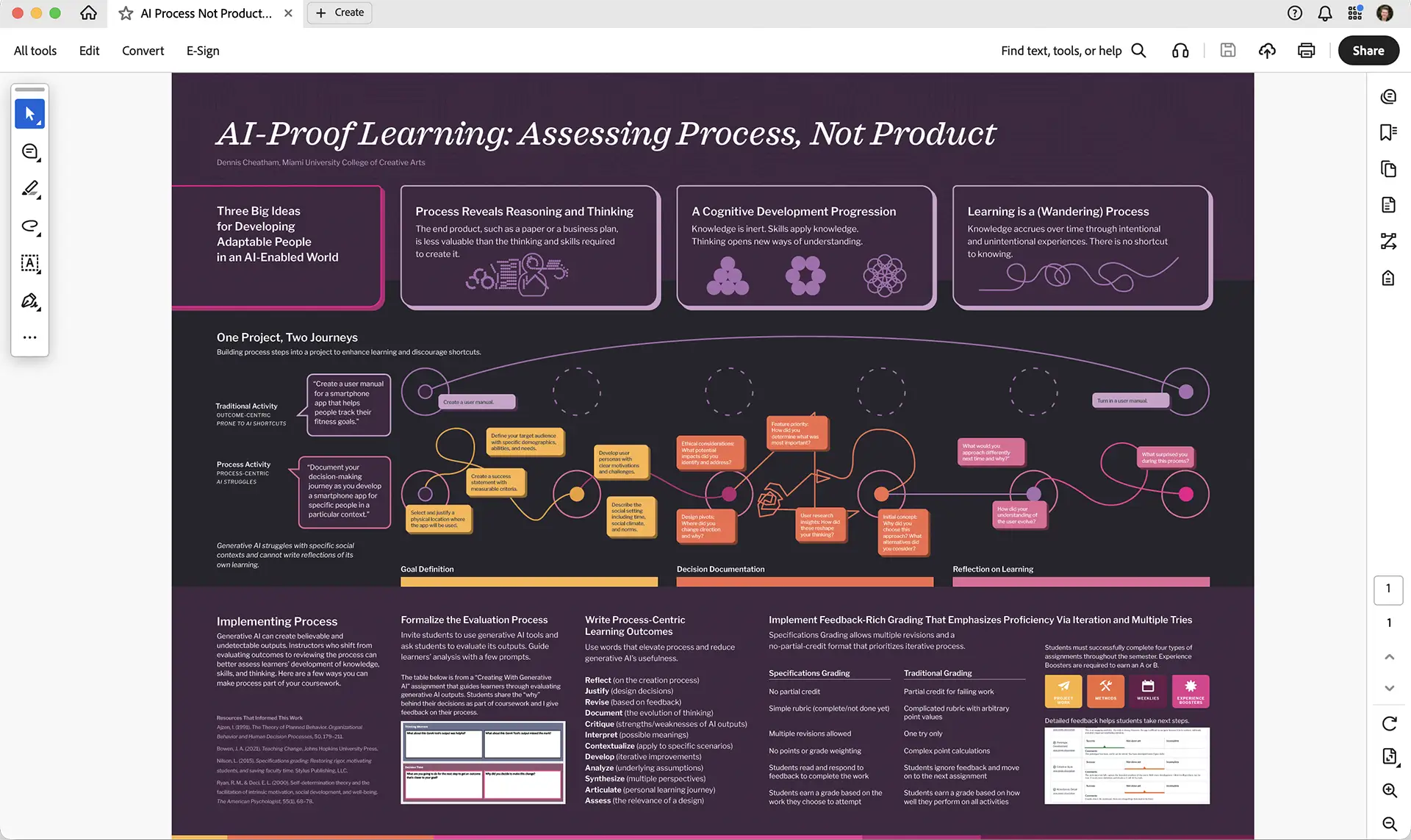
Printing Page Size
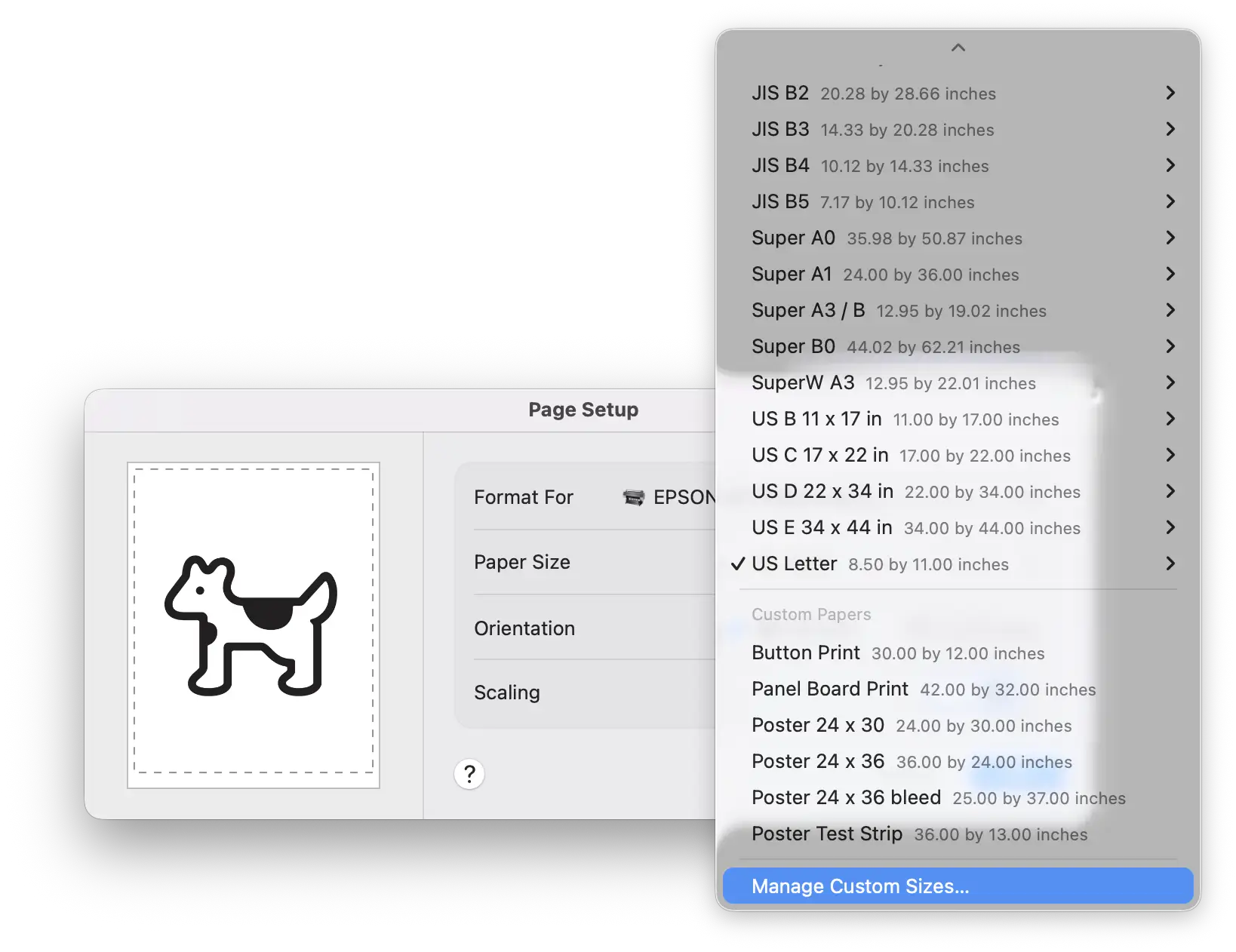
Create a custom page size for a large-format print. Select Page Setup…
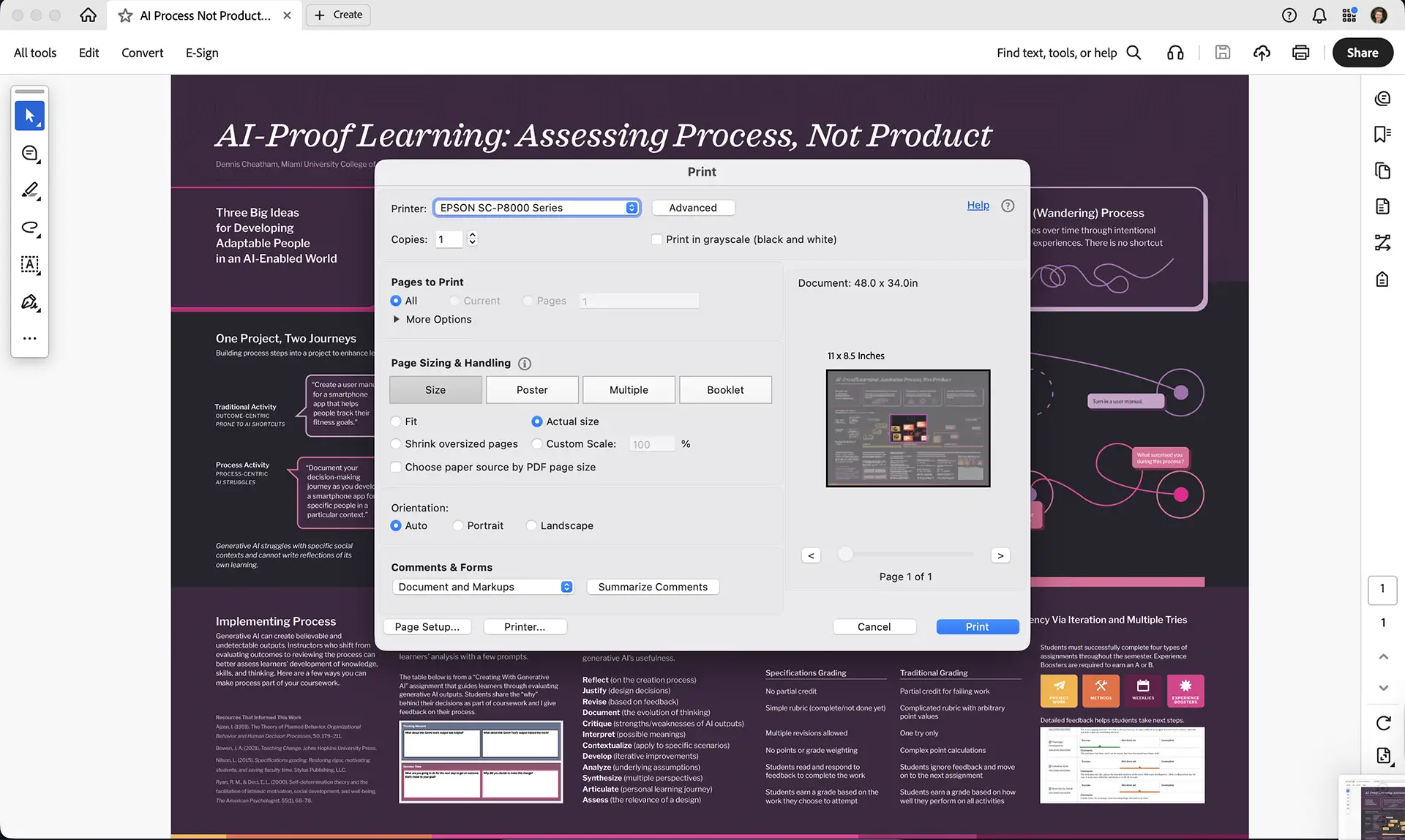
Select the Epson P8000 printer. If you do not have that option, install the Epson print driver. Download the print driver from Epson.
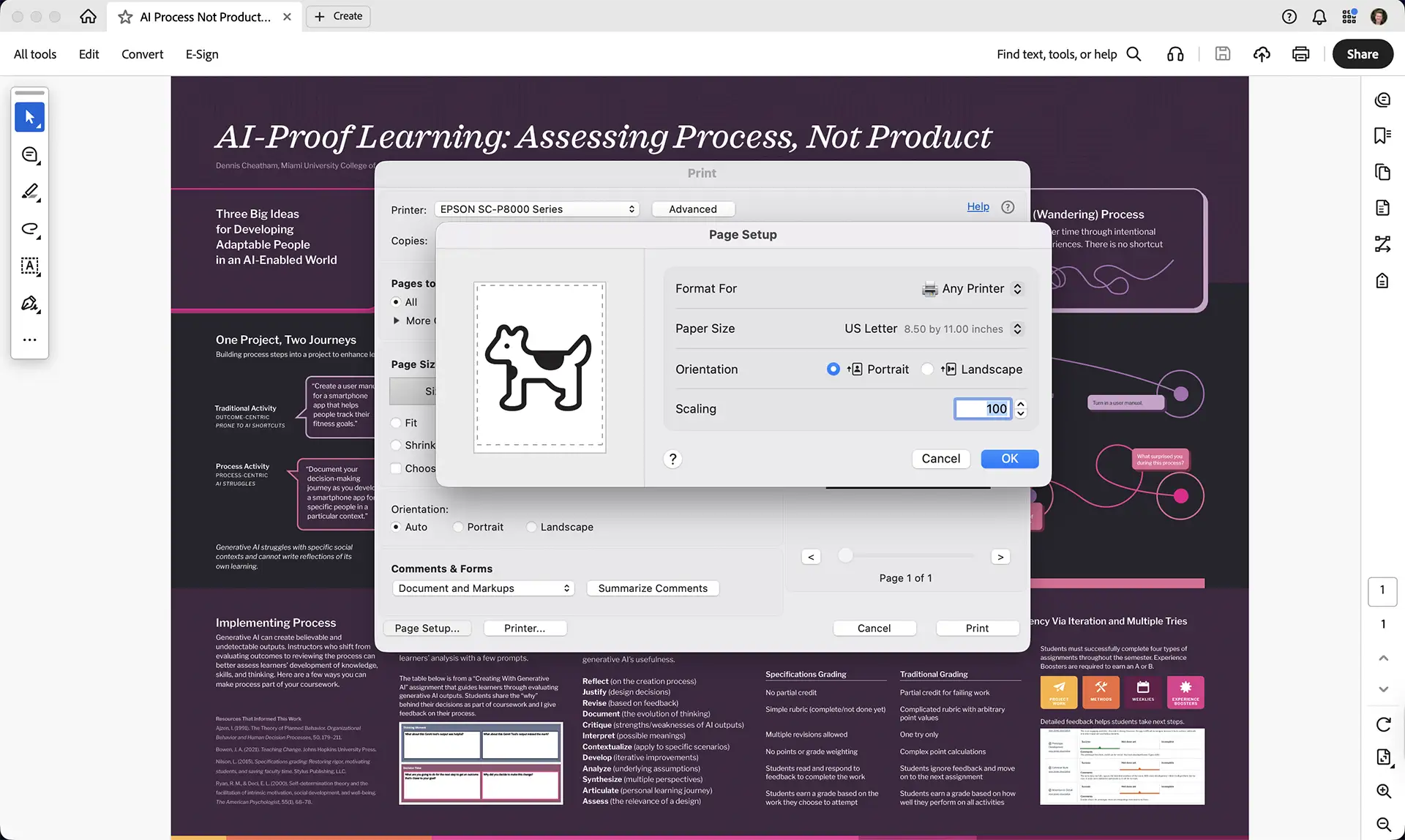
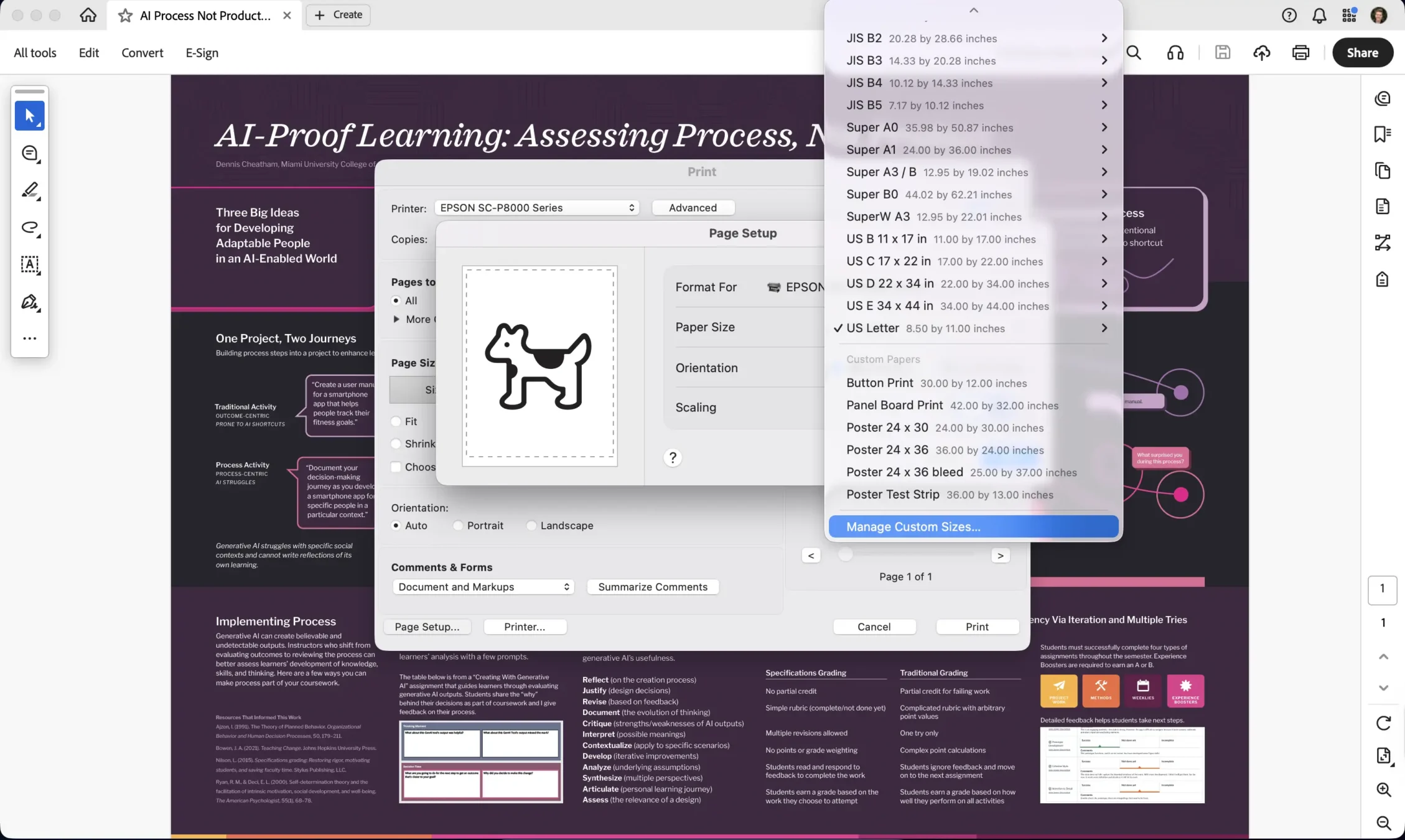
Create a page size that’s large enough for your print. Use Manage Custom Sizes to create the page size.
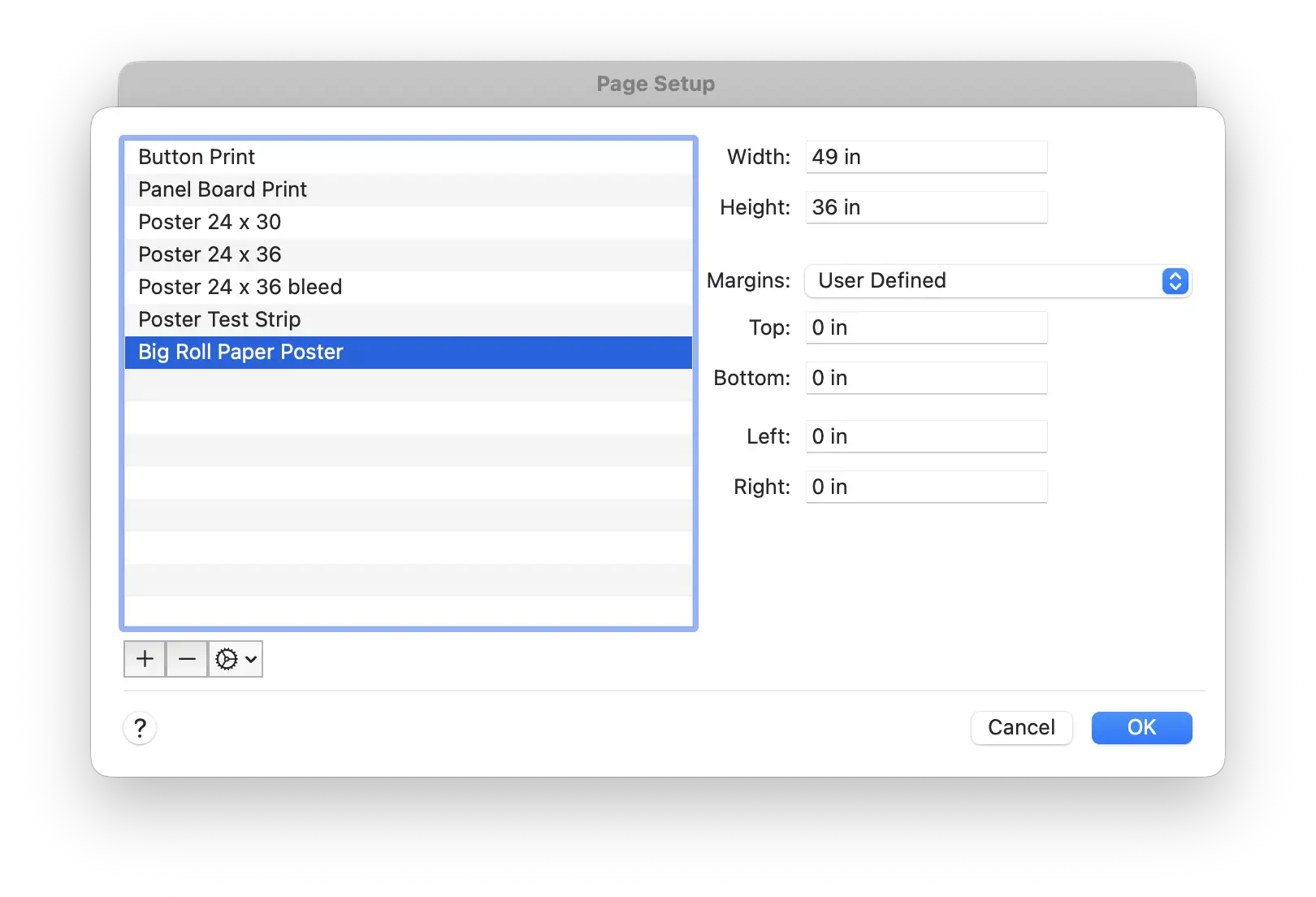
Name the custom page size something you’ll remember. Margins can be set to 0 to maximize the print area.
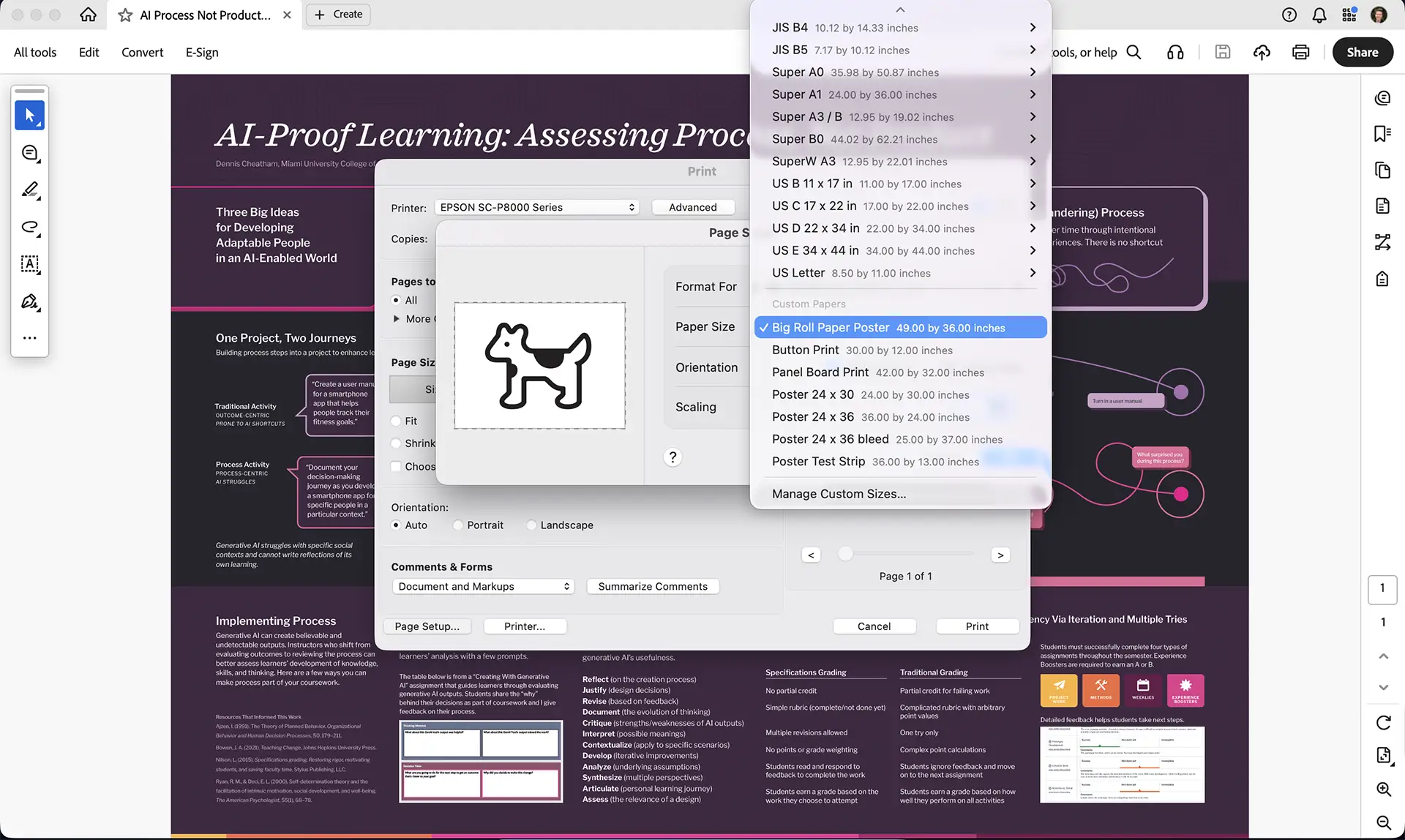
Your new page size (Big Roll Paper Poster) is now available!
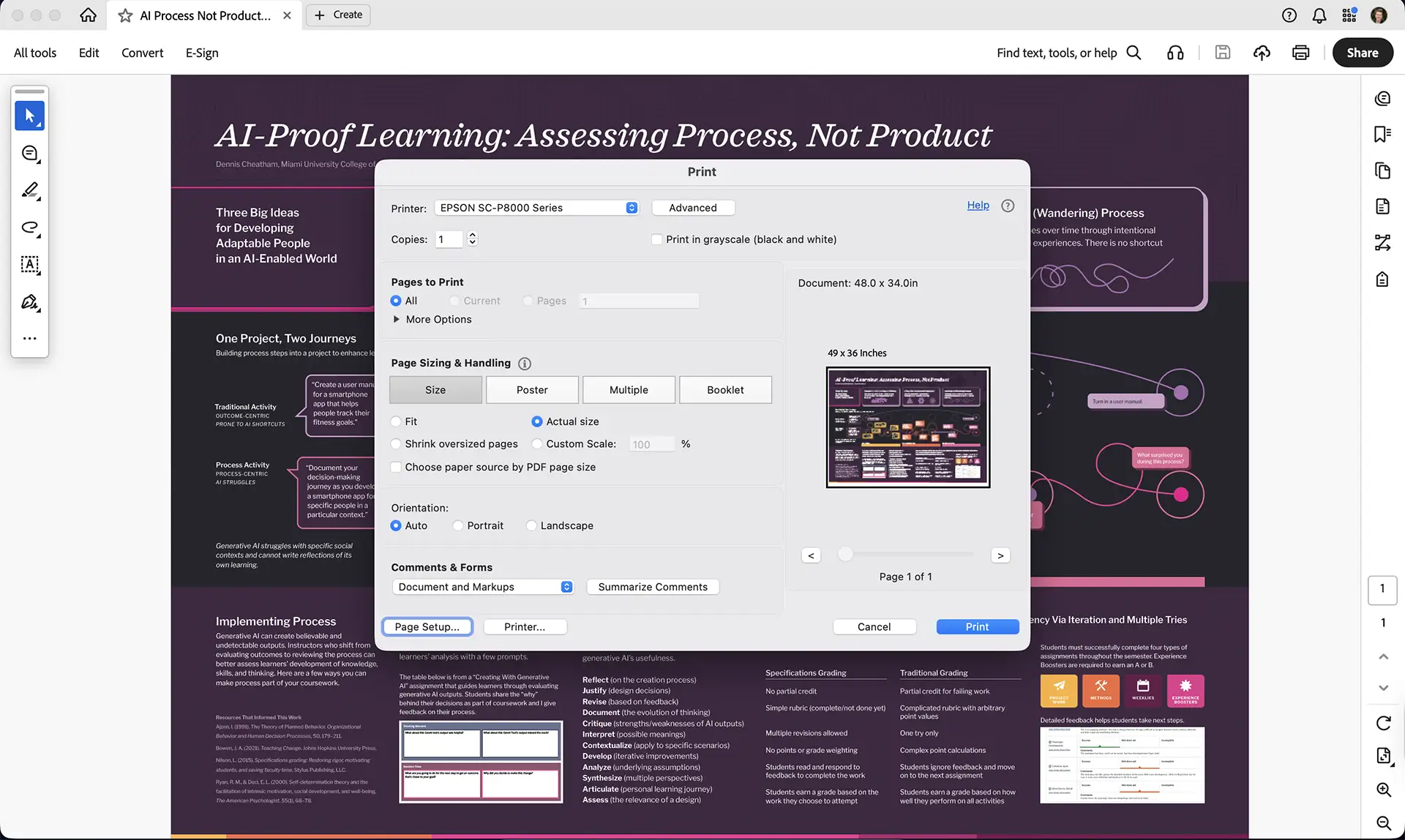
Set the page size to Actual size.
Set the Epson Printer Options
Select Printer to launch the Epson Printer Options dialog boxes.
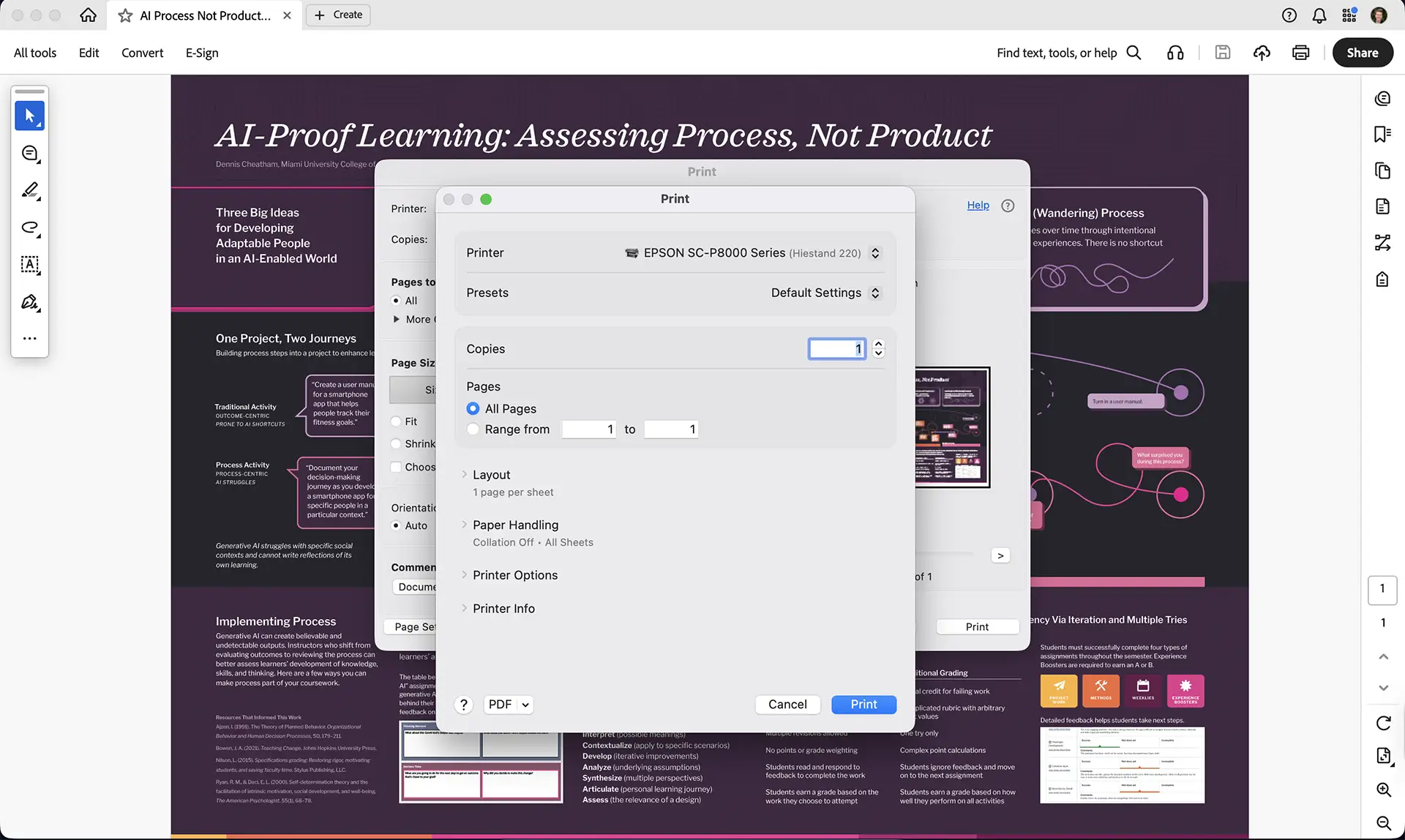
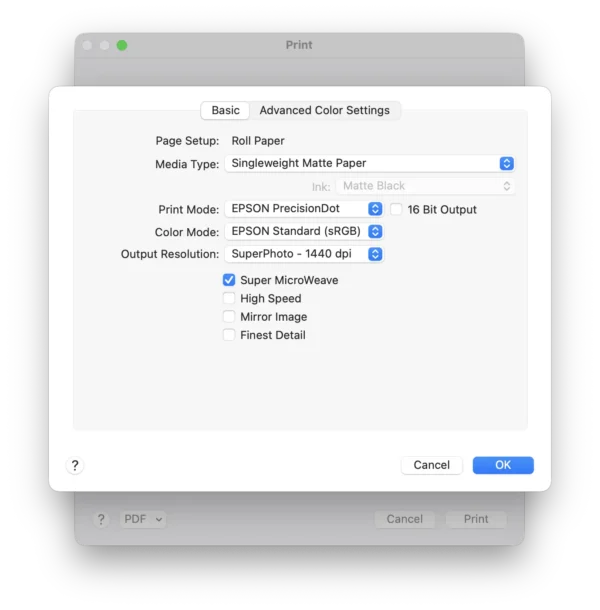
Select Printer Options. Here, you will set the paper type and print quality settings. You’ll get the best quality prints if you set these correctly to match the paper in the printer. We use matte paper only in our print lab in Graphic + Experience Design at Miami University.
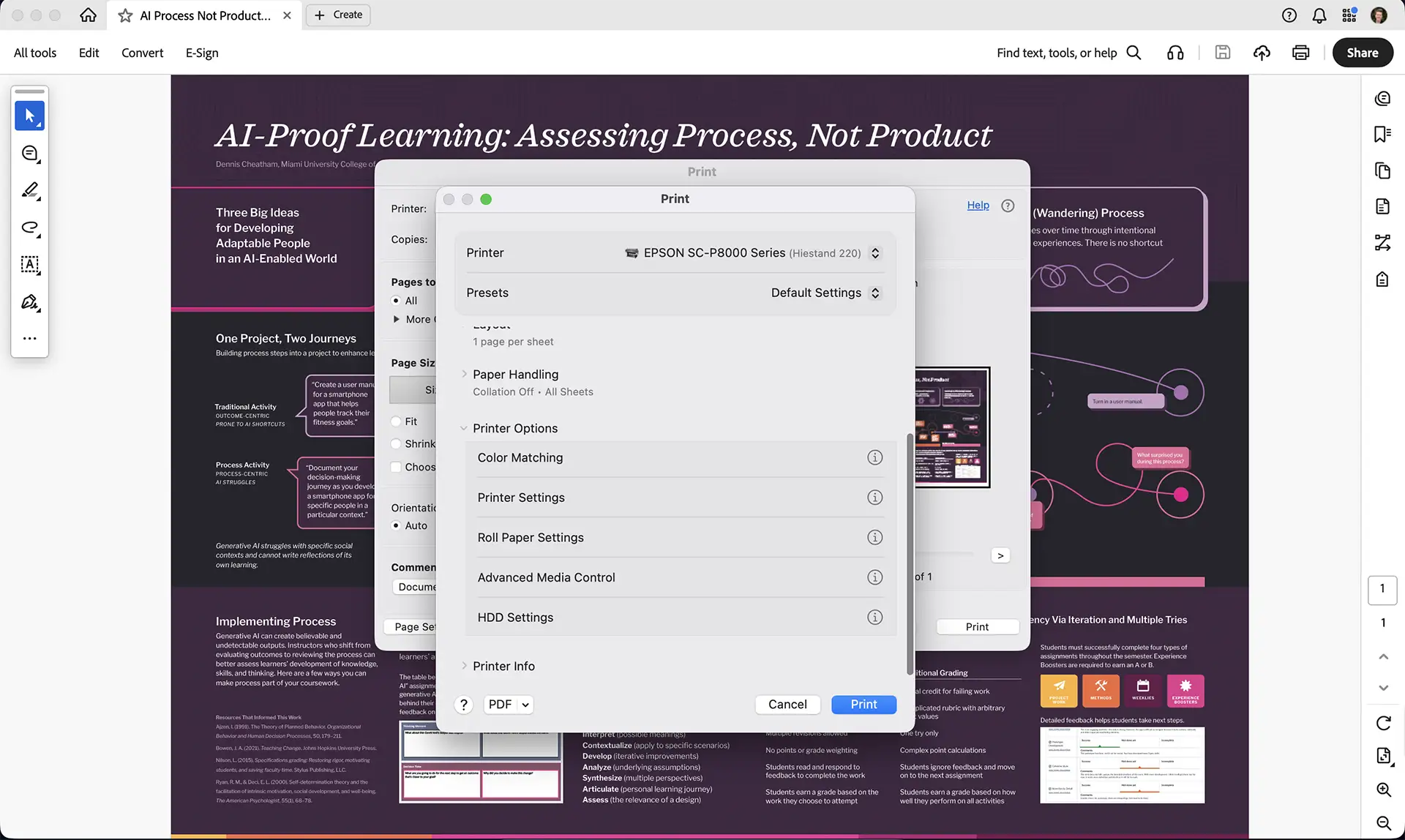
Select Printer Settings.
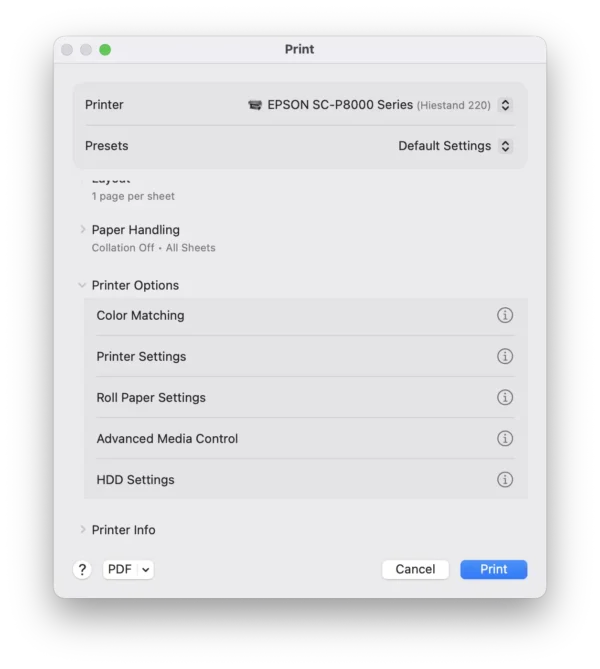
The Epson P8000 default is Premium Luster Photo Paper. Do not use this setting. It will reset almost every time you print, so check this setting before printing.
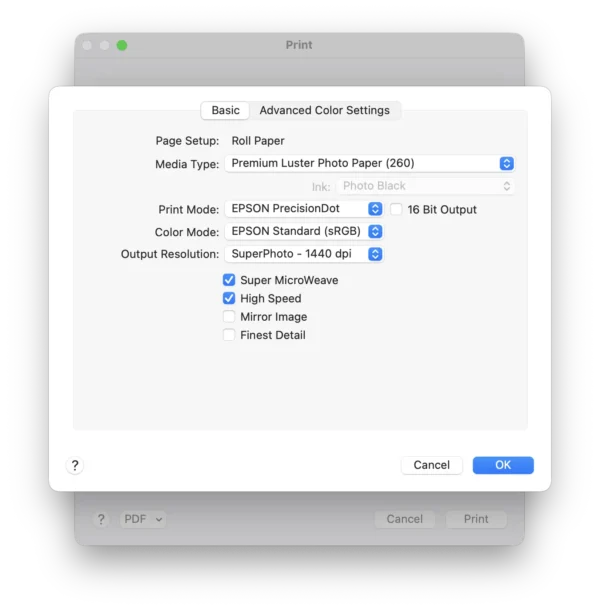
Use these settings:
- Singleweight Matte Paper (or Doubleweight Matte if you are using it).
- SuperPhoto 1440dpi
- Check Super MicroWeave
- Uncheck High Speed
You’re ready to print!